
Watch it a hundred times — or just place one order
The demo store, "Pizza King Mong Kok", runs a complete menu inside the live system: hot/iced and sweetness options, set-meal combos and takeaway pickup all behave like a real restaurant. Grab your phone, scan the code, and walk the whole flow in two minutes.
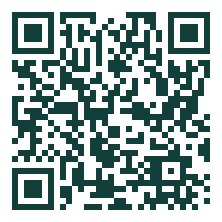
① Scan to order (takeaway)
Scan with your phone's camera — the demo store's menu opens. Try the milk tea's hot/iced and sweetness options, upgrade a set meal, then place an order.
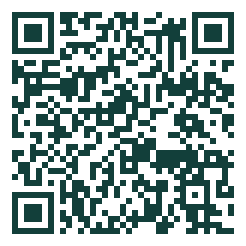
② Scan to order (dine-in)
In a real store, dine-in starts by scanning the QR code on the table. This code simulates table A08 — scan it and the table number fills in automatically.
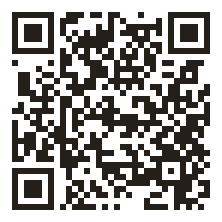
③ Download the POS (Android)
Install the native POS on a tablet or touchscreen terminal, and try taking orders, voiding dishes and scanner verification.
Backend demo credentials are not public — leave your email below and we'll send them over.
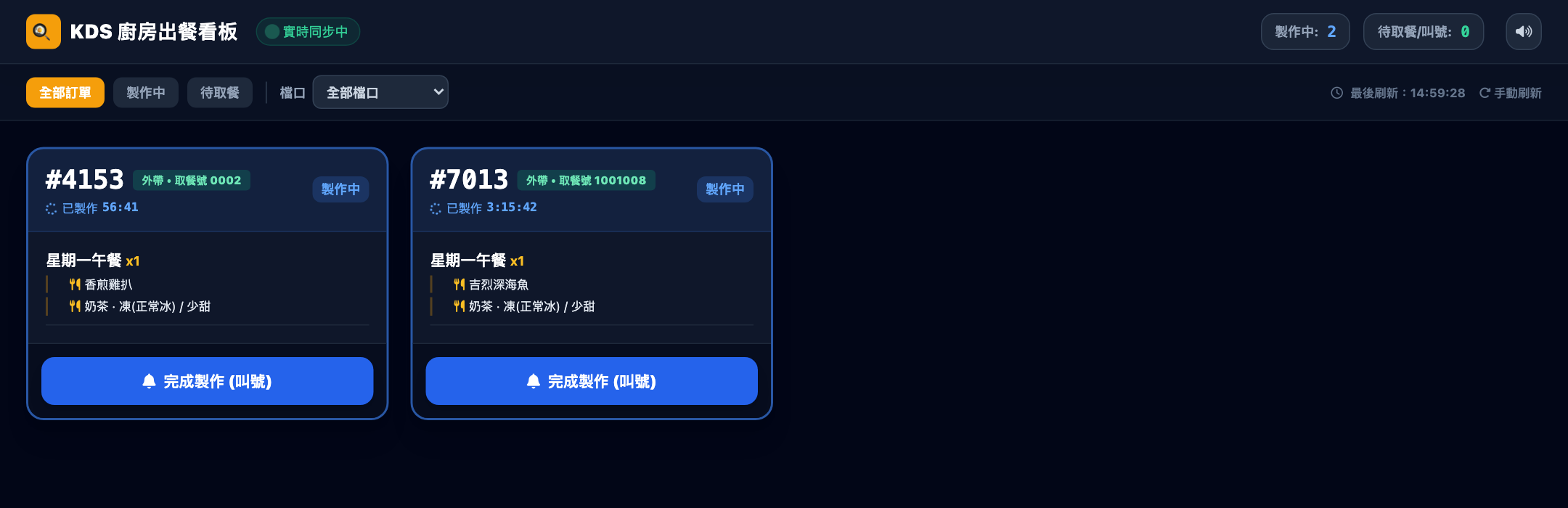
④ KDS kitchen screen
Orders land straight on the kitchen display: In Progress / Ready columns scroll live, one tap to fire and call. Please open on a computer.
Request the demo account via the form below.
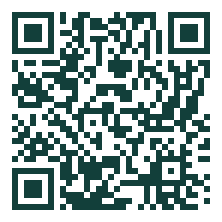
⑤ In-store big screen demo
Cast the pickup call screen to your store TV: place an order on your phone, then watch the pickup numbers scroll in real time on the big screen.
Get Demo Credentials
POS and KDS demo accounts are not public — leave your email and we'll send the credentials right away.
Suggested walkthrough (2 minutes)
Scan to enter
Scan the first QR code for a takeaway trial; for dine-in, scan the second — it simulates table A08, so the table number fills in automatically.
PhonePlace an order
Tap a milk tea and try the options — hot/iced, sweetness, ice level, coffee away — then add the Monday lunch set to see set meals in action.
Options · Set mealsPlace a takeaway order
Switch to "Takeaway pickup", check the separate pickup pricing and estimated ready time, then order and get your pickup number.
TakeawayStatuses move on their own
The demo store runs an "automatic kitchen": orders progress at a real store's pace — Accepted → Preparing → Ready → Done. Open the order page and watch the status update live, or open the big-screen page to see the calling.
LiveLook behind the counter
(Optional) Open the KDS demo on a computer — your order is already scrolling on the kitchen screen; the POS order list syncs instantly too.
KDS · POSTalk business
If it clicked, leave your contact details and we'll build a demo store with your own menu.
Next step